IPhone Folder Security Explained
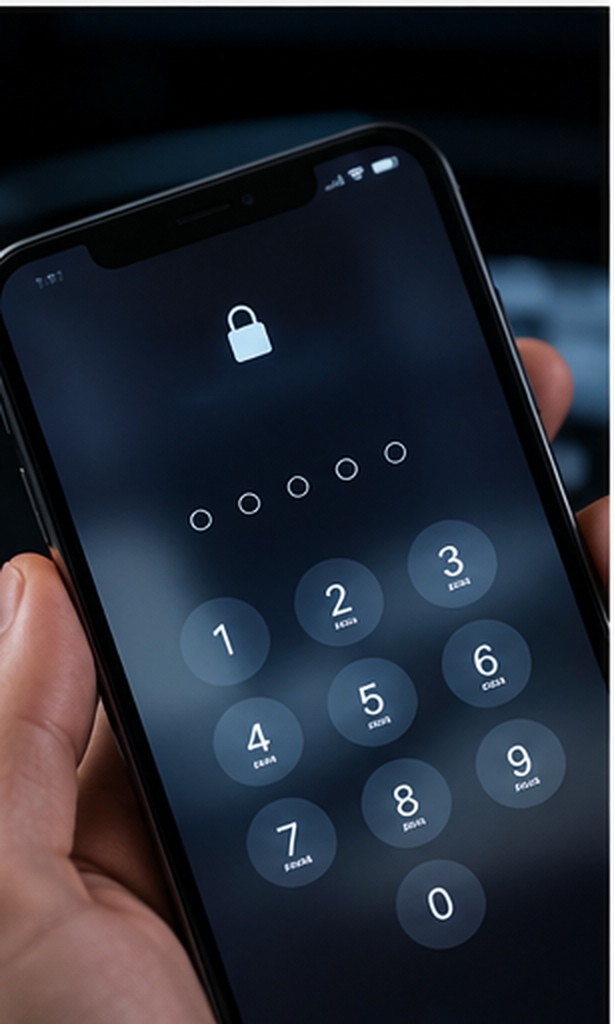
When searching for how to password protect a folder on iPhone, most users are surprised by iOS's limitations. since of Apple's "sandboxed" architecture—where apps operate in isolated environments—system-wide folder locking doesn't exist natively.
That said, you can secure documents, photos, and files using a mix of native iOS functions and robust security apps. The approach you choose depends heavily on what kind of file you are trying to hide and whether you need true encryption or just casual privacy.
Lock Files App Folder on iPhone
Difficulty: Hard (Native)The native Apple Files app does not let you put a password directly on a yellow folder. If you want native document password security without installing an app, you have to use a workaround involving ZIP archives.

Method 1: The Mac/iOS ZIP Workaround
- On your iPhone, gather the files you want to protect into a single folder in the Files app.
- Long-press the folder and select Compress. This creates a `.zip` file.
- The limitation: iOS cannot add a password to this ZIP file. You must transfer the ZIP to a Mac, use Terminal (`zip -er archive.zip foldername/`), and AirDrop it back to the iPhone.
- Once back on your iPhone, the ZIP will require a password to extract.
Best for: Users who already own a Mac and need to secure files before emailing them.
Method 2: Page/Numbers/Keynote Password Protection
If your documents are in Apple's iWork formats, you can lock them individually:
- Open the document in Pages, Numbers, or Keynote.
- Tap the More (...) button in the top right.
- Select Set Password.
- Enter your password (you can also enable Face ID for it).
Password Protect Photo Folder on iPhone
Difficulty: straightforwardIf your goal is to lock photos folder iphone with password, iOS 16 and later make this incredibly straightforward natively via the Hidden album.

- Open the Photos app and select the images you want to hide.
- Tap the More (...) icon and choose Hide.
- Go to controls > Photos and ensure Use Face ID (or Touch ID) is toggled on for the Hidden and Recently Deleted albums.
Editorial Note
This locks the folder behind your phone's biometric security. It does not let you set a separate, unique password. Anyone who knows your phone's primary lock screen passcode can still access this folder.
Lock Notes Folder on iPhone
Difficulty: straightforwardThe Notes app is surprisingly the best native tool for document security. You can import PDFs, scans, and text into a note, then lock it.
- Open Notes and create a new note.
- Tap the Camera icon to scan a document, or the Attachment icon to import a file.
- Once the file is in the note, tap the More (...) icon at the top.
- Tap Lock. You can choose to use your iPhone passcode or create a custom password specifically for Notes.