Guides / iOS Security / Folder Protection

Keep iPhone Folders Private with Password Protection

iOS is famously restrictive for file management. While there isn't a straightforward "right-click and lock" button in the Files app, there are secure native workarounds and powerful external apps to lock your photos, documents, and folders completely.

Editorial Team · Updated: June 2026 · 8 min read
Quick Answer

To password protect files natively on iPhone, you must use the Notes app (scan/import files into a Note, then lock the Note) or compress files in the Files app into a ZIP file (though Apple requires a Mac to apply a password to that ZIP natively). For true standalone folder locking with encryption directly on an iPhone, you need a dedicated security app like Folder Lock.

Smartphone shield illustration for iPhone folder password security and mobile privacy

IPhone Folder Security Explained

When searching for how to password protect a folder on iPhone, most users are surprised by iOS's limitations. since of Apple's "sandboxed" architecture—where apps operate in isolated environments—system-wide folder locking doesn't exist natively.

That said, you can secure documents, photos, and files using a mix of native iOS functions and robust security apps. The approach you choose depends heavily on what kind of file you are trying to hide and whether you need true encryption or just casual privacy.

Lock Files App Folder on iPhone

Difficulty: Hard (Native)

The native Apple Files app does not let you put a password directly on a yellow folder. If you want native document password security without installing an app, you have to use a workaround involving ZIP archives.

Secure file transfer without password sharing for protected iPhone documents

Method 1: The Mac/iOS ZIP Workaround

  1. On your iPhone, gather the files you want to protect into a single folder in the Files app.
  2. Long-press the folder and select Compress. This creates a `.zip` file.
  3. The limitation: iOS cannot add a password to this ZIP file. You must transfer the ZIP to a Mac, use Terminal (`zip -er archive.zip foldername/`), and AirDrop it back to the iPhone.
  4. Once back on your iPhone, the ZIP will require a password to extract.

Best for: Users who already own a Mac and need to secure files before emailing them.

Method 2: Page/Numbers/Keynote Password Protection

If your documents are in Apple's iWork formats, you can lock them individually:

  1. Open the document in Pages, Numbers, or Keynote.
  2. Tap the More (...) button in the top right.
  3. Select Set Password.
  4. Enter your password (you can also enable Face ID for it).

Password Protect Photo Folder on iPhone

Difficulty: straightforward

If your goal is to lock photos folder iphone with password, iOS 16 and later make this incredibly straightforward natively via the Hidden album.

iPhone Hidden album privacy screen for locking private photos with Face ID
  1. Open the Photos app and select the images you want to hide.
  2. Tap the More (...) icon and choose Hide.
  3. Go to controls > Photos and ensure Use Face ID (or Touch ID) is toggled on for the Hidden and Recently Deleted albums.

Editorial Note

This locks the folder behind your phone's biometric security. It does not let you set a separate, unique password. Anyone who knows your phone's primary lock screen passcode can still access this folder.

Lock Notes Folder on iPhone

Difficulty: straightforward

The Notes app is surprisingly the best native tool for document security. You can import PDFs, scans, and text into a note, then lock it.
Apple Notes lock screen for password protecting scanned documents on iPhone
  1. Open Notes and create a new note.
  2. Tap the Camera icon to scan a document, or the Attachment icon to import a file.
  3. Once the file is in the note, tap the More (...) icon at the top.
  4. Tap Lock. You can choose to use your iPhone passcode or create a custom password specifically for Notes.
The Tool We Recommend for Most Users

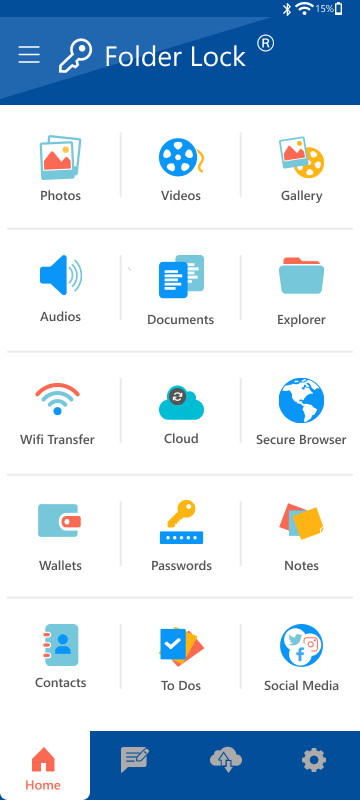
Native workarounds are clunky. If you want true folder locking, AES-256 encryption, and the choice to set unique passwords directly on your iPhone, here is why we recommend Folder Lock.

My Secure Vault
📸
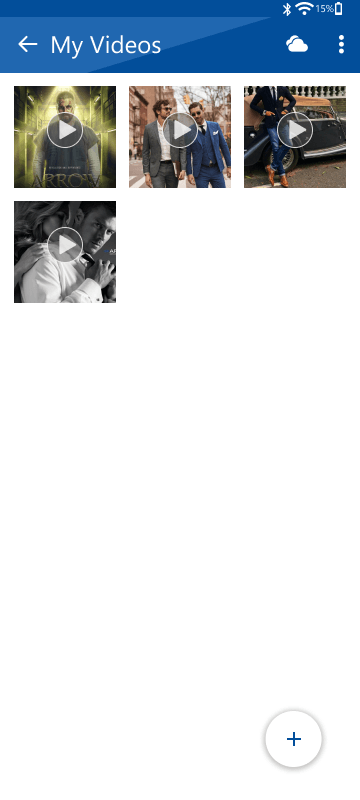
Photos & Videos
💳
Secure Wallets
📝
Secret Notes
🌐
Private Browser
Folder Lock iOS app screenshot showing encrypted vault protection for private files
Folder Lock for iPhone app screen showing private file and folder protection
AES-256 Encryption Intruder Tracking Secure Wi-Fi Transfer
Get Folder Lock Free → View Full functions →

Advanced Protection Features

When you use a dedicated app instead of iOS workarounds, you gain functions designed specifically for privacy. Here is what you get with external document security software.

Encrypted Cloud Syncing

Unlike standard iCloud backups which sync files in their raw format, this tool lets you link your Google Drive, Dropbox, or OneDrive accounts and encrypts the files before they leave your device. You maintain the keys, ensuring that even if your cloud provider experiences a breach, your data remains completely unreadable.

Vault iOS cloud backup and Dropbox encryption function graphic

Catch Intruders in the Act

If someone picks up your iPhone and tries to guess the vault's PIN, the application silently triggers the front-facing camera. It captures a timestamped photograph of the unauthorized user, giving you a clear record of exactly who attempted to breach your privacy and when.

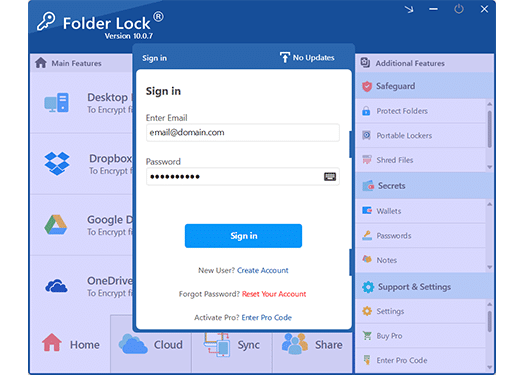
Folder Lock login screen showing private vault password access

Footprint-Free Browsing

Standard iOS Safari tracking can leave behind a trail of your web activity. Dedicated security apps often include an isolated internal web browser that actively rejects cookies and automatically purges all browsing history the moment you exit, ensuring zero forensic evidence remains on your iPhone.

Private secure browsing illustration for sensitive iPhone web activity

Secure Wallets & Text Encryption

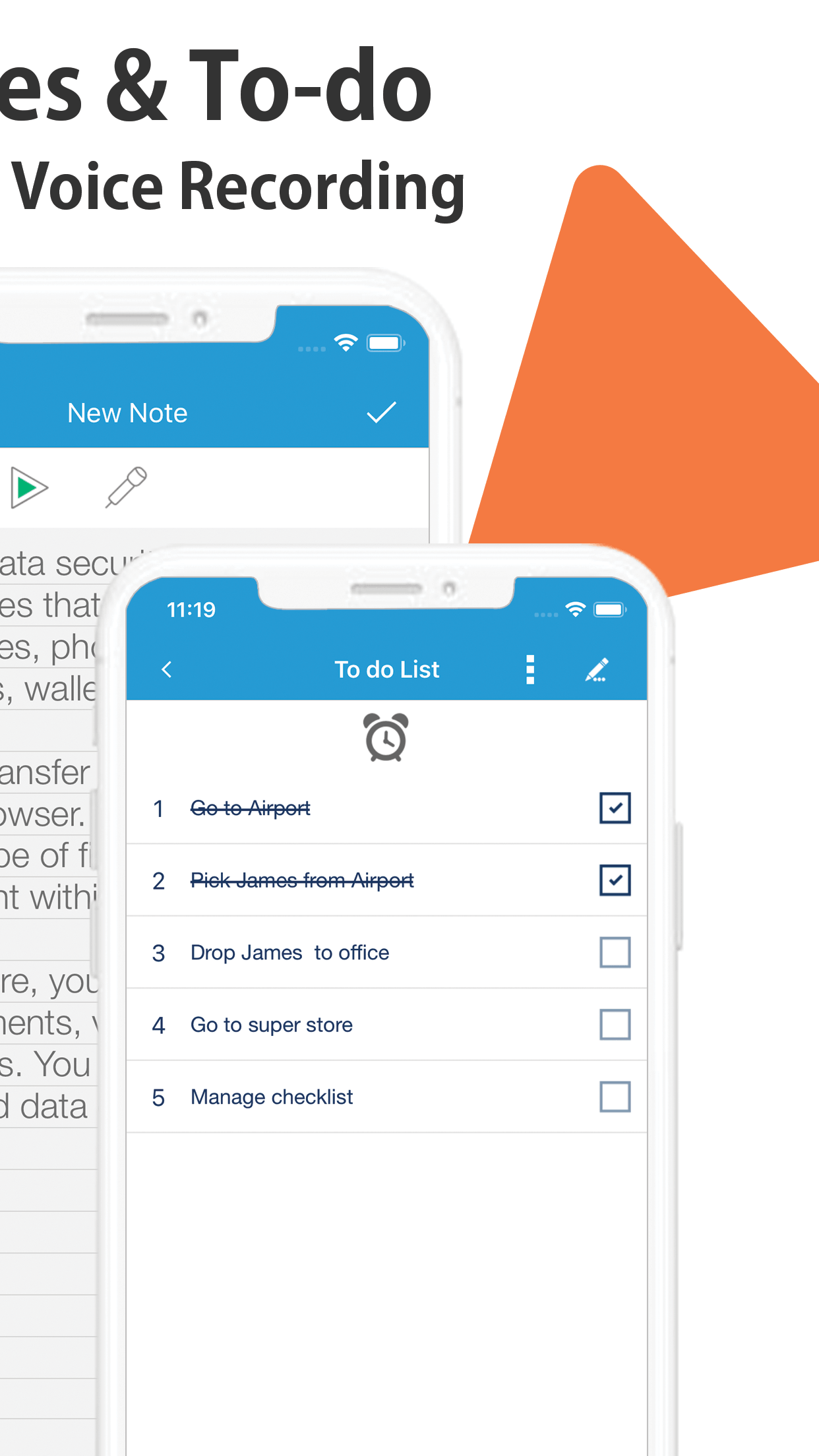
Beyond standard files, you can generate customized, encrypted digital cards to hold highly sensitive text. This is the ideal environment for storing banking routing numbers, credit card details, Social Security numbers, and confidential personal journaling that you cannot risk leaving in the native iOS Notes app.

Vault iOS secure notes todo and voice recording privacy function

Comparing Approaches

How does how to password protect a folder in iphone files natively compare to using dedicated software?

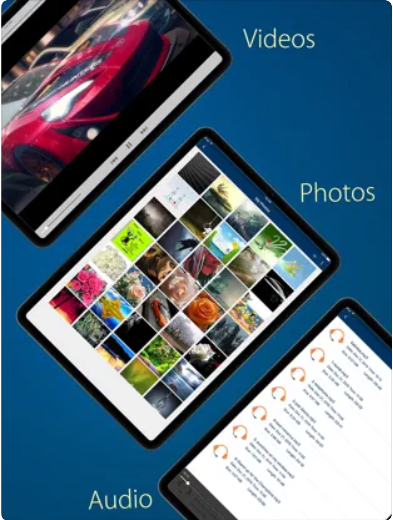
Folder Lock iPad screenshot for comparing native iOS tools with dedicated vault apps

Native iOS (Notes/Files)

Best for occasional use and users who don't want to install new apps.

Free native Clunky setup Tied to device passcode

Folder Lock (iOS)

Best for users who need batches of documents, photos, and folders secured quickly.

True Encryption Unique Password Decoy Mode external install

Which Method is Right For You?

Use our quick tool to find a practical way to protect your files based on your needs.

What type of files are you protecting?

Do you want a completely separate password from your lock screen?

Result: Use Native iOS Tools

Based on your answers, you don't need extra software. Use the Hidden Album in Photos (secured via Face ID) or the Notes App lock for your documents.

Result: Use Dedicated Security Software

since you need a separate password or are dealing with complex file types, native iOS sandboxing will frustrate you. We recommend using an app like Folder Lock to create a dedicated, encrypted vault.

Problem Solving Guide

Document password security comes with risks. Here is how to handle frequent problems safely.

Lock screen security concept for forgotten passwords and protected files

What to do if you forget a document password

If you used the native Notes app and forgot your custom password, Apple cannot recover it. You can reset your Notes password for future notes, but old notes will remain permanently locked. If you use Folder Lock, verify if you set up a recovery email during installation; otherwise, AES-encryption is unbreakable by design.

"Couldn't be opened for import. If the file is password protected, try removing the password"

This is a frequent error when uploading protected Office files to Google Sheets or Drive from your iPhone. Google Drive cannot read AES-encrypted Office files or ZIPs natively. You must remove the password using Word/Excel on your device before uploading to cloud services.

Permissions Password vsOpen Password

When sharing documents, understand the difference: An Open Password encrypts the file (nobody can read it without the key). A Permissions Password (frequent in PDFs) only restricts editing/printing, but the file can be opened and read by anyone. iOS natively handles Open Passwords much better than Permissions Passwords.

Common Questions and Answers

General Folder Protection

Can I password protect a folder on iPhone natively?
No. You cannot right-click a standard folder in the iOS Files app and apply a password. You must either compress it into a ZIP (and password-protect the ZIP via a Mac) or use a external vault app.
ways to create a password-secured notes folder on iPhone?
You cannot lock a whole *folder* of Notes natively. That said, you can lock individual notes. Open the note, tap the More (...) icon, and select Lock.

Third-Party and Advanced Methods

Is PDF password security the same as encryption?
Usually, yes. Modern PDF apps apply AES encryption when you set an open password. That said, if you only set a "Permissions Password" (to prevent copying), the file itself is not encrypted and can often be bypassed by basic software.
What is the best app to password protect a folder on iPhone?
We recommend Folder Lock for iOS due to its true AES-256 encryption, decoy password function, and local Wi-Fi transfer capabilities that keep your files off cloud servers if you prefer local storage.
Can I batch password protect multiple documents?
Natively on iOS, no. You have to lock them one by one in Pages/Numbers or Notes. To batch protect, you need to import them into a secure folder app, which encrypts the entire batch simultaneously.

Folder Lock Pricing: What You Get

Unlike native tools, external security requires a download. Here is the structure for our top recommended app.

Folder Lock 10 boxshot for download and full version details
Version Limits & Capabilities Best For
Free Version Up to 1 GB of secure vault storage. Allows synchronization across a maximum of 2 devices. Basic file and photo locking included. Users with a handful of sensitive PDFs or personal photos who want to test the interface.
Pro Upgrade ($39.95) Unlimited encrypted storage capacity. Syncs across up to 5 devices (iOS, Android, Windows, Mac). Unlocks unlimited secure sharing and permanent file shredding. Professionals managing large archives of confidential client documents or large media files.